Setting Up the Mobile App the Right Way
The mobile app is where 1Password earns its keep, because your phone is exactly where you need passwords most — at the checkout counter, on public Wi-Fi, in a taxi to the airport. Setup takes five minutes: install the app, sign in with your account details, and approve the device. If your Secret Key is already saved on another trusted device, the app can pull your sign-in information from it with a single confirmation, sparing you from typing the long code by hand.
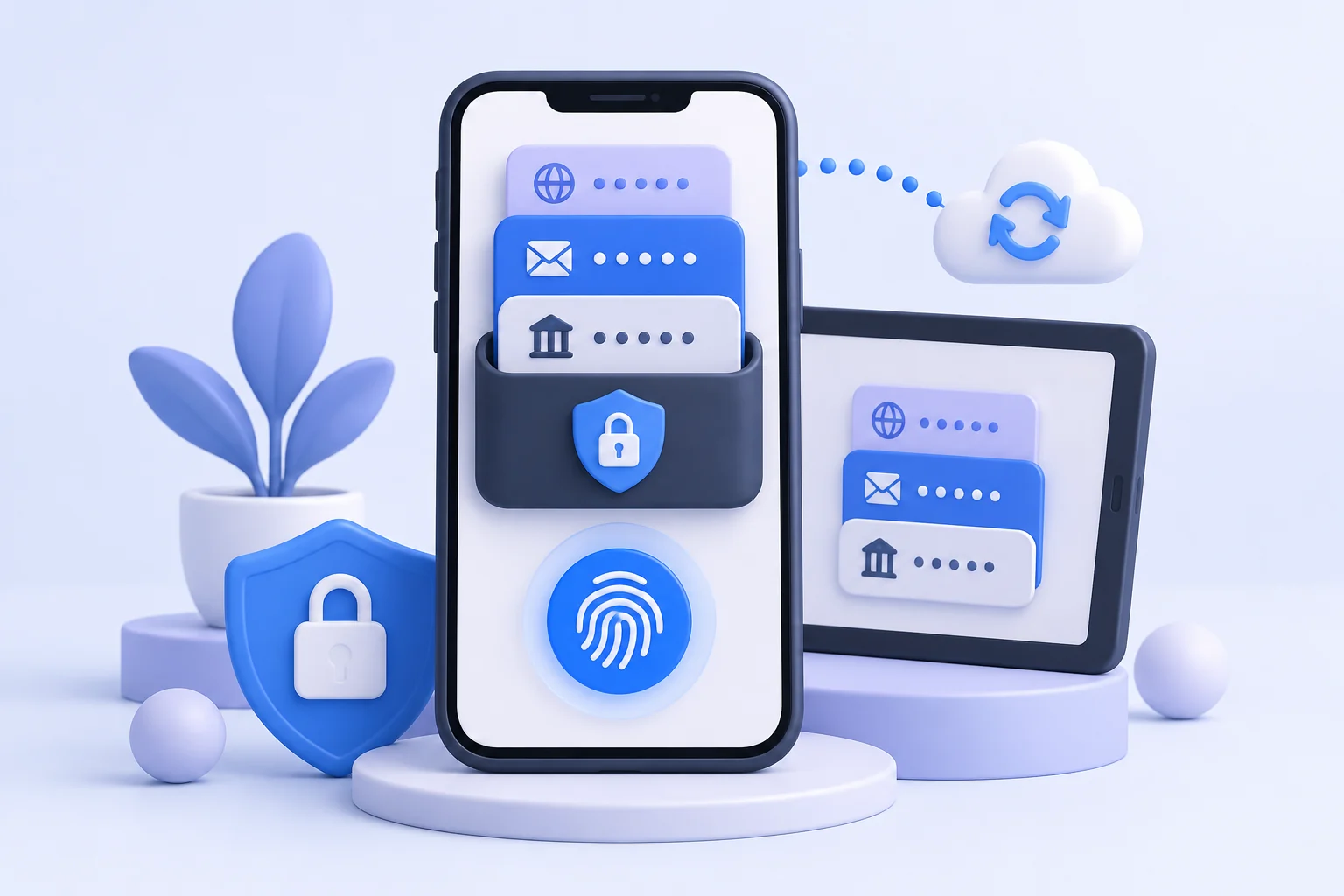
Right after signing in, open Settings and enable biometric unlock. Face ID or fingerprint authentication then replaces the master password for most sessions, and the app re-locks itself when backgrounded or after a timeout you choose. This single setting is the difference between a password manager you open reluctantly and one that quietly protects every login without friction.
Autofill: The Feature That Changes Everything
On iOS, autofill comes through the system keyboard integration: when you tap a username or password field, a 1Password button appears above the keyboard, and a Face ID glance fills the login instantly. On Android, the app registers as an autofill service, so tapping any credential field offers your saved logins inline. Both paths mean you never copy-paste passwords or switch apps mid-login, which also keeps credentials off the clipboard where other apps could read them.
A tip that many users miss: 1Password matches logins to apps as well as websites. Save your banking app's login once, and the autofill service recognizes the app on every future launch. When a site's mobile app and website use the same account, make sure the item's website field includes the site's domain so autofill links them correctly — it saves real confusion later.
Offline Access, Sync, and Battery-Friendly Behavior
A common worry is what happens without internet. The answer is reassuring: after signing in, your vault is cached on the device in encrypted form, so passwords, codes, and notes remain available in airplane mode, on airplanes, and in dead zones. Changes made offline queue up and sync automatically once connectivity returns. You do not need to think about it — the vault is simply there when you need it.
For one-time codes, the mobile app is especially convenient. Instead of juggling a separate authenticator app, store verification codes directly on the login items in your vault. Tapping a code copies it to the clipboard, and many browsers and apps let 1Password fill both the password and the code in sequence. Just keep the recovery codes for your most critical accounts outside the vault, printed and stored safely, so a single point of failure never exists.
Travel Mode and Mobile Security on the Road
Travel Mode deserves a place on every traveler's phone. Before a border crossing or an airport security check, you mark the vaults you need for the trip; every other vault is removed from your devices entirely — not hidden, actually deleted locally — until you turn the mode off at your destination. Because removal happens server-side, even a confiscated phone cannot be coerced into revealing what is not present.
A few extra habits round out mobile safety. Keep your phone's operating system updated, since 1Password's biometric unlock relies on the platform's secure hardware. Set a short auto-lock timeout so a snatched phone re-locks the vault within seconds. And if your phone is ever lost, remove it from your account's device list from any browser — a mobile 1password login you revoke vanishes instantly. For a fuller walkthrough of signing in across devices, read our guide to the 1password account login and keep your Emergency Kit somewhere that is not your phone case.
Final Thoughts
Mobile is where password managers prove their worth daily, and 1Password's phone apps are the most polished part of the product. Spend ten minutes configuring autofill, biometrics, and offline settings, and every future login becomes a glance and a tap. The phone in your pocket then carries a vault that is simultaneously easier to use than a notes app and exponentially harder to break into than a spreadsheet — exactly how security should feel.